
Content generation: the complete guide
The Content Factory turns your business into a steady stream of published articles, written for Google (SEO) and for AI answer engines (GEO) at the same time. It is not a wizard you restart for every article. It is a factory: you set up a few reusable foundations once, and they feed a production line that keeps producing for months.
This guide takes you the whole way, from an empty account to a filled editorial calendar. Find it under Acquisition → Content Generation.
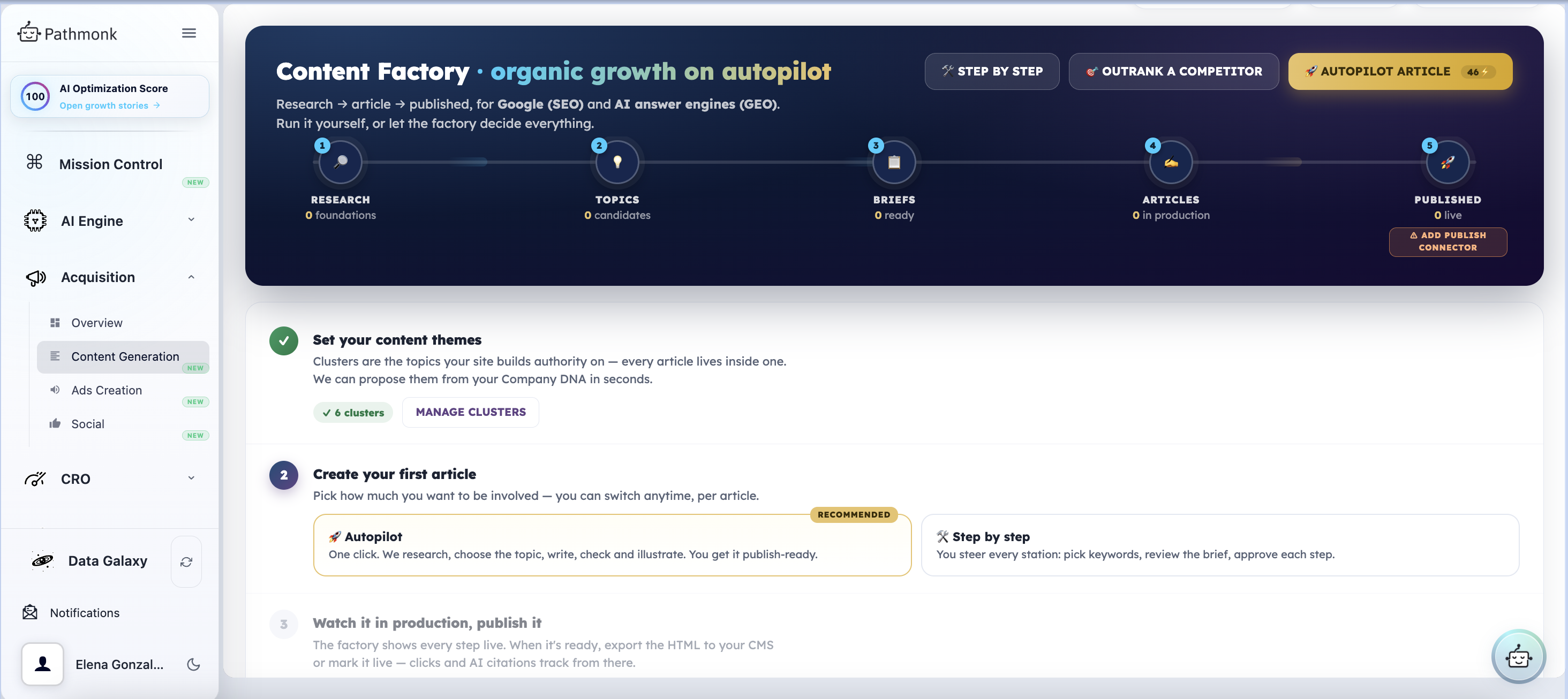
How the factory thinks
Two ideas explain almost everything about how the screens behave. Foundations fan out, production is one to one. A research is never used up. One research can seed hundreds of articles over months. The fan-out happens early, at the topic stage. From the brief onward, every chain is strictly one to one:
Research  →  Topic     →  Brief        →  Article           →  Distribution
(SEO + GEO)  candidate    THE TRIGGER     7 production steps   social + email kit
   1 → many     1 → 1        1 → 1              1 → 1
The brief is the trigger. Nothing goes into production until you create one.
Two channels, one research. People no longer only type keywords into Google. They also ask ChatGPT, Perplexity, Gemini and Google AI Overviews, then read the synthesized answer. So every research run produces two elements you can improve separately:
| Element | What it finds | The goal | Scored by |
|---|---|---|---|
| Keyword Research (SEO) | The keywords people type into Google | Rank | Volume, difficulty, expected clicks |
| Prompt Research (GEO) | The prompts people ask AI engines, and who gets cited today | Be the cited source | Citation opportunity |
Both feed the same topics. The duality then travels downstream: the brief carries a GEO structure plan (answer-first blocks, comparison tables, FAQ schema, entity clarity), and production runs a GEO check right beside the SEO check.
The five stations across the top of the hub, Research → Topics → Briefs → Articles → Published, are your progress bar. They always show how much sits at each stage.
Step 1: Set your content clusters
Clusters are the themes your site builds authority around. Every keyword research runs inside exactly one cluster, and every article lives inside one. That constraint is deliberate: it is what compounds single articles into topical authority instead of a scattered blog.
On a new account, step 1 of the hub asks you to set them. You have two routes:
- Generate my clusters from DNA (5 credits): Pathmonk proposes clusters from your Company DNA in seconds.
- I'll add them myself: type your own if you already know the themes you want to own.
Once they exist, Manage clusters opens the full list so you can review what the system picked, add more, or regenerate.
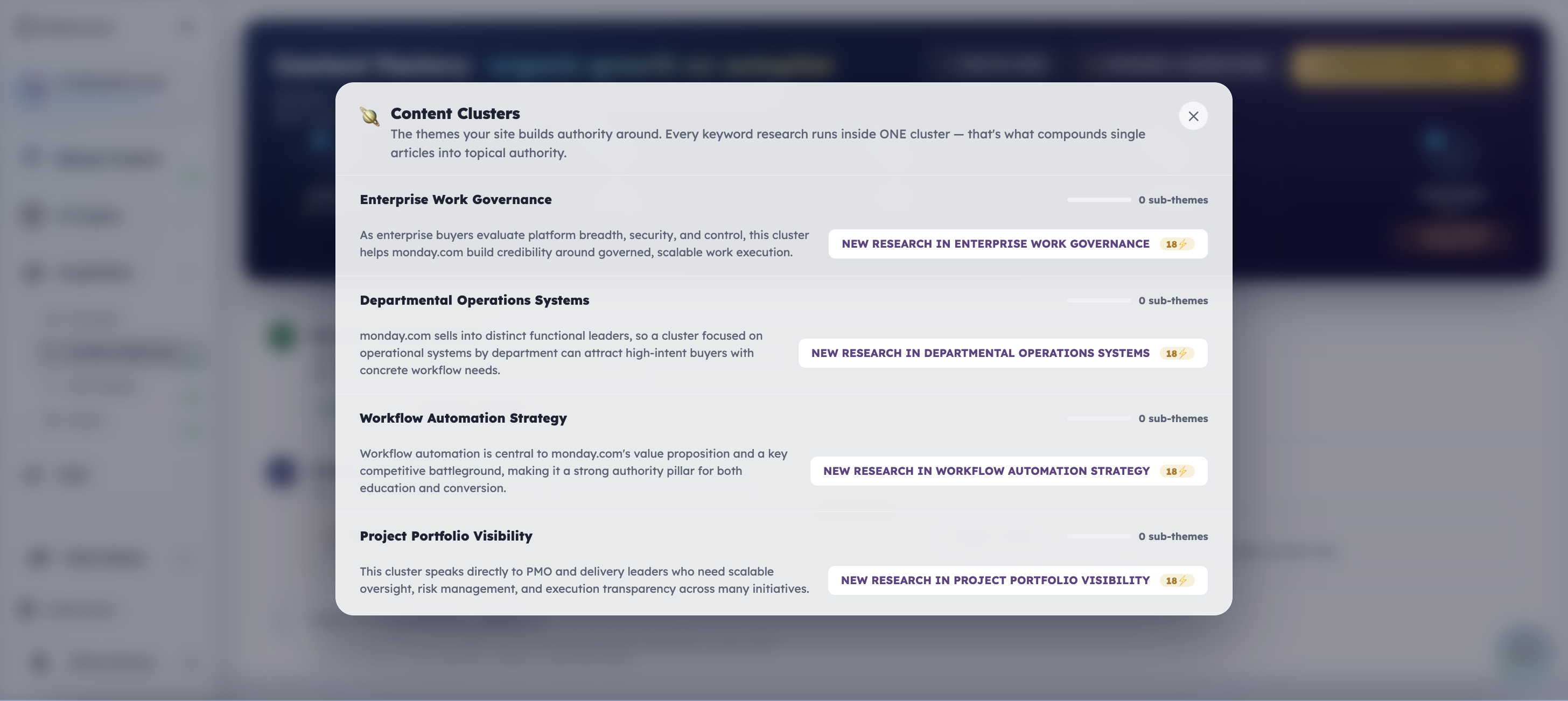
Each cluster carries a short explanation of why it fits your business, and its own New research in this cluster button with the credit cost on it.
Step 2: Run the research
Pick a cluster and start its research. Pathmonk goes and finds your SEO keywords and your GEO prompts together, in one run, usually in under two minutes.
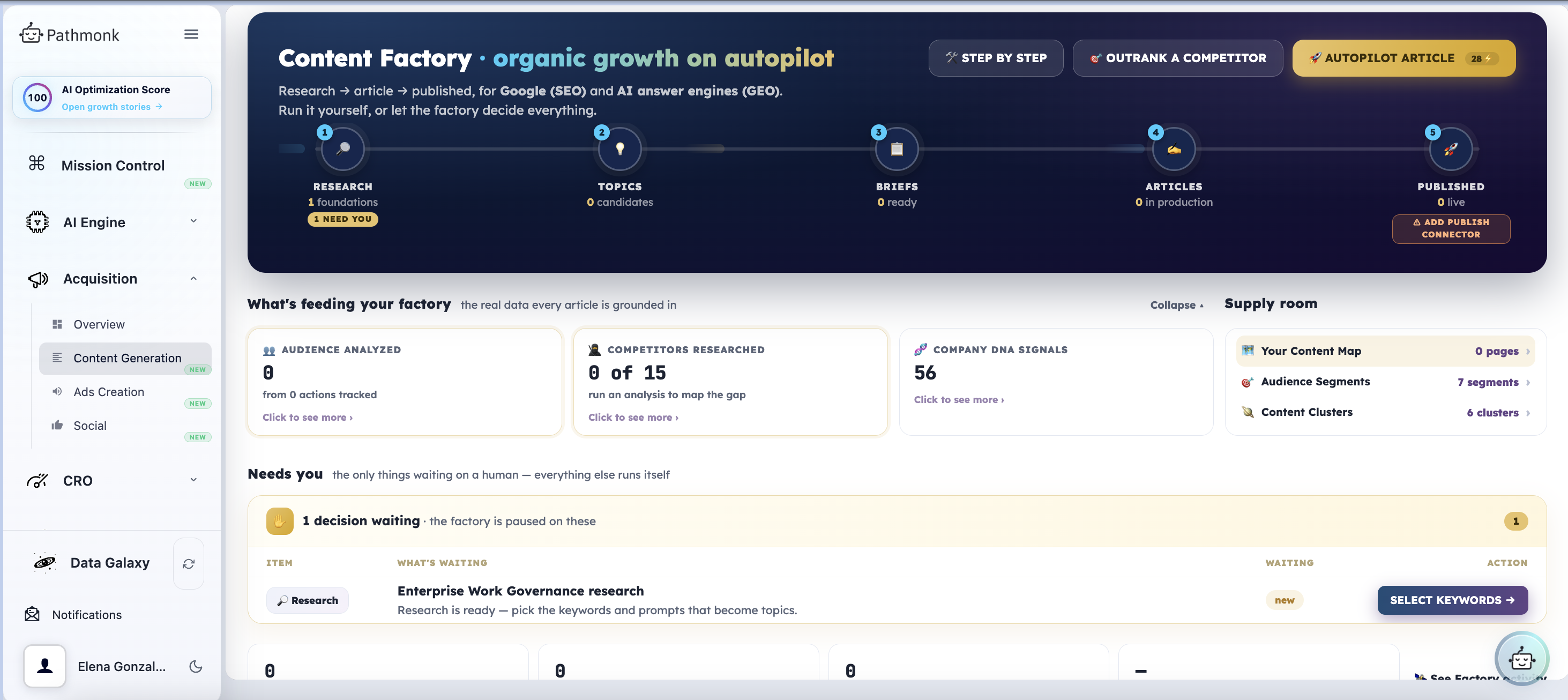
It runs in the background. You can leave the screen and keep working. It lands in its stage when it is done. When it finishes, the hub tells you it needs you.
Needs you is the most useful part of the hub. It lists only the things waiting on a human, because everything else runs itself. A finished research appears here as Research is ready, pick the keywords and prompts that become topics, with a Select keywords button.
Step 3: Choose your keywords and prompts
Open the research and you get the full result: a reusable foundation, tagged as such, showing how many keywords and prompts it found, which sources it drew on (Search Console, AI answer scan, Company DNA, competitor gaps), and how many articles it currently feeds.
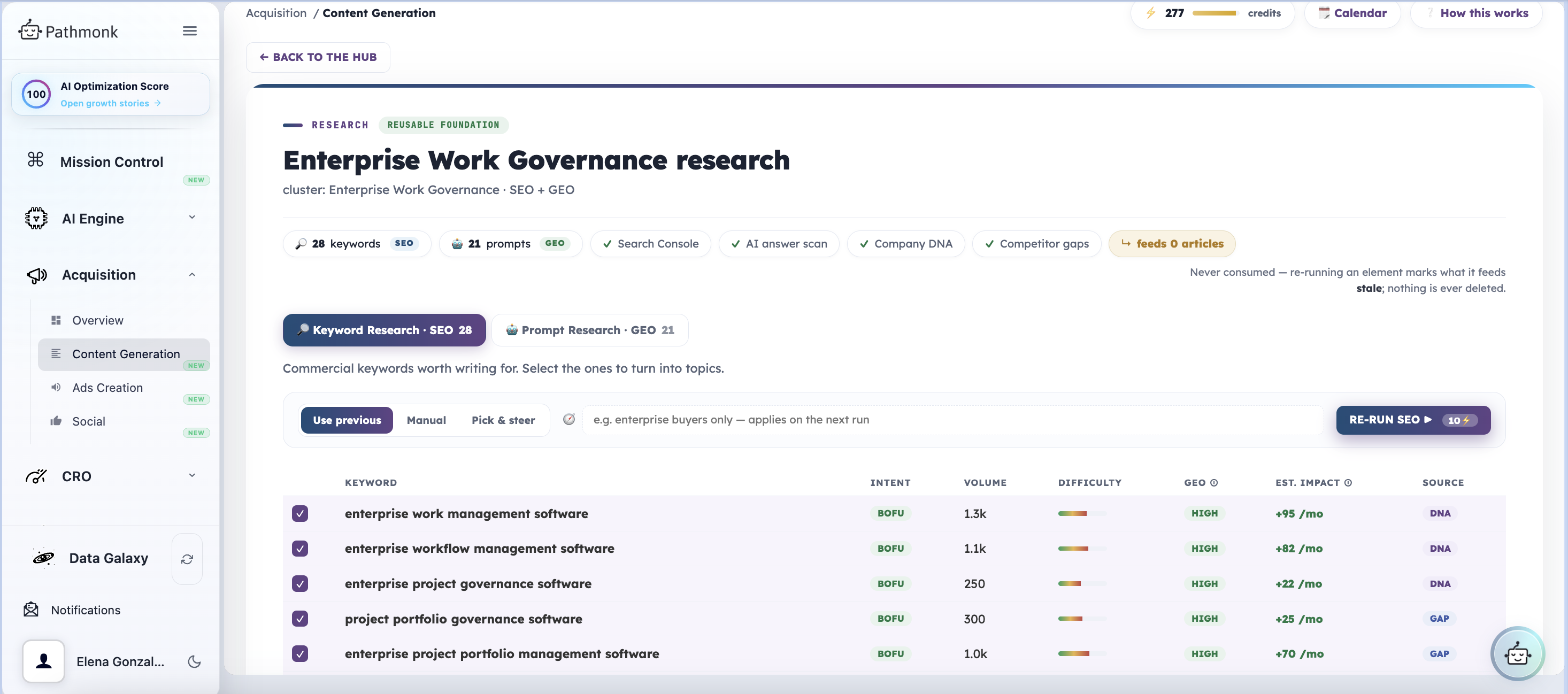
The keyword table gives you, per keyword:
- Intent, so you can tell a bottom-of-funnel commercial keyword from an earlier-stage one
- Volume and difficulty
- GEO, how easy it is to be cited on AI search for that term
- Est. impact, the expected monthly gain, so you can prioritize by outcome rather than by gut
- Source, showing whether the keyword came from your Company DNA or from a competitor gap
Everything is selected by default. Untick anything you do not want, and use Add keyword manually for terms you know matter that the research missed.
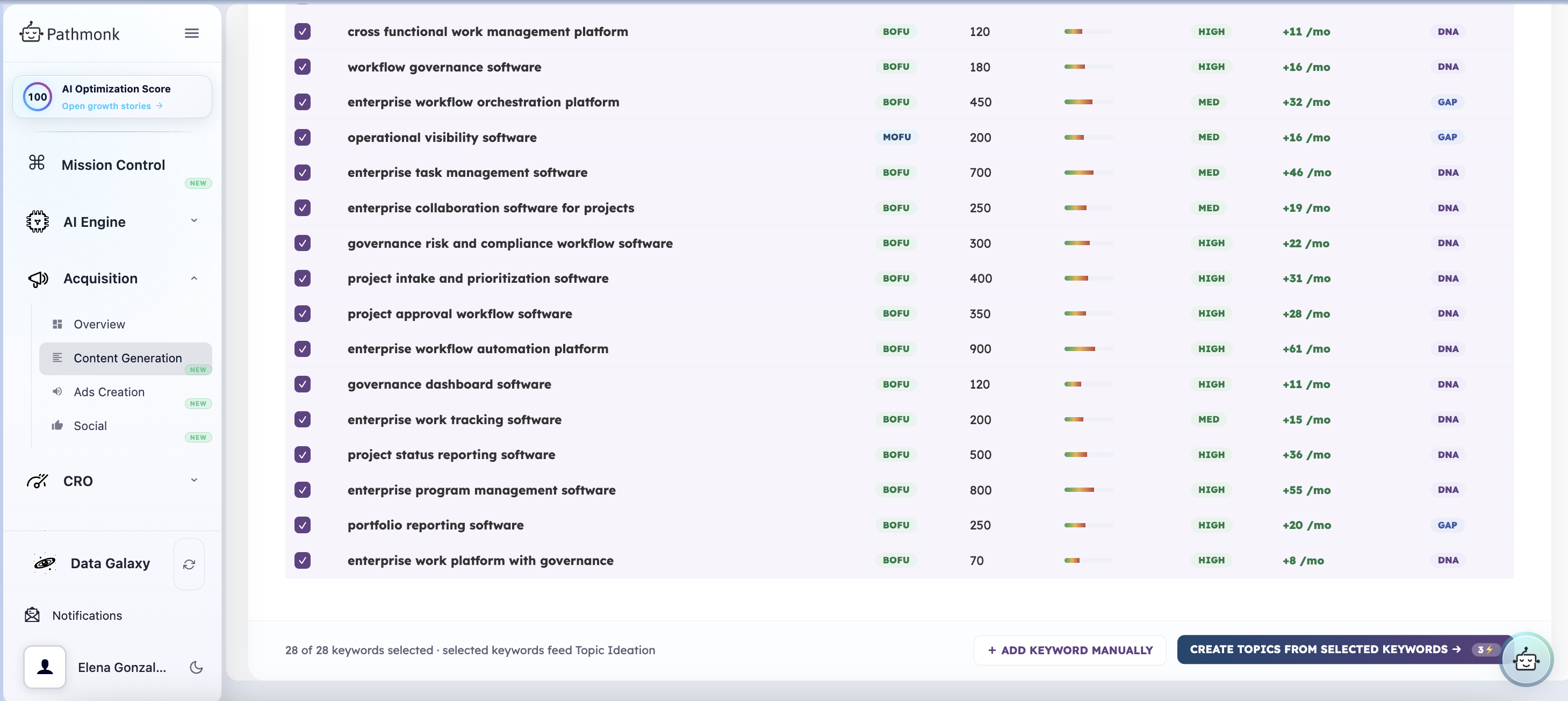
Switch to the Prompt Research (GEO) tab to review the AI-engine side the same way. Both selections feed the same topic ideation.
When you are happy, click Create topics from selected keywords.
Step 4: Your topic backlog
Topics are article candidates. Each one you approve becomes exactly one brief.
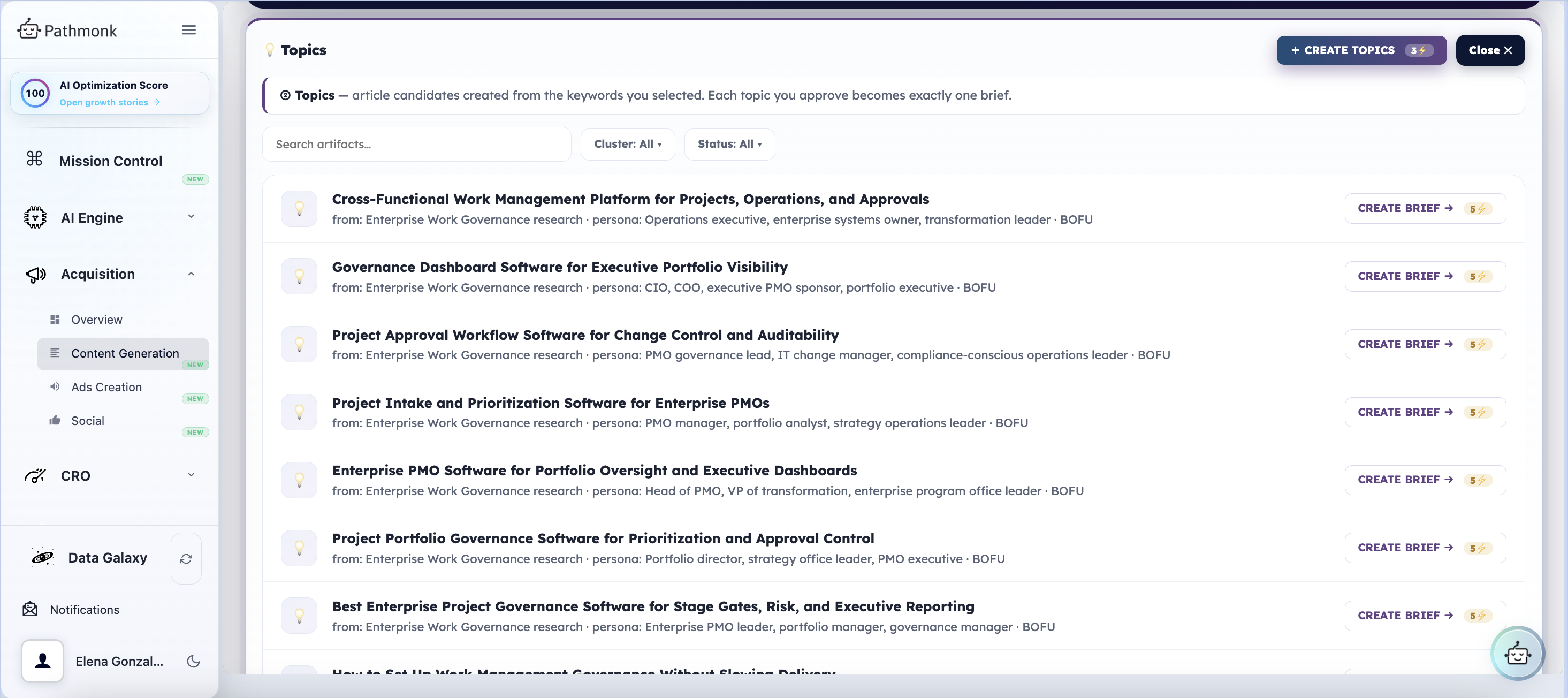
Every topic shows the research it came from, the persona it targets, and its funnel stage. You can filter by cluster and by status.
This list is your editorial backlog. One research run typically produces nine or ten candidates, and they sit here until you decide to produce them. You do not have to brief them all at once, and they do not expire.
Step 5: Create and review the brief
Click Create brief on a topic and Pathmonk writes the editorial plan: outline, reader, questions to answer, CTA, and the GEO structure plan.
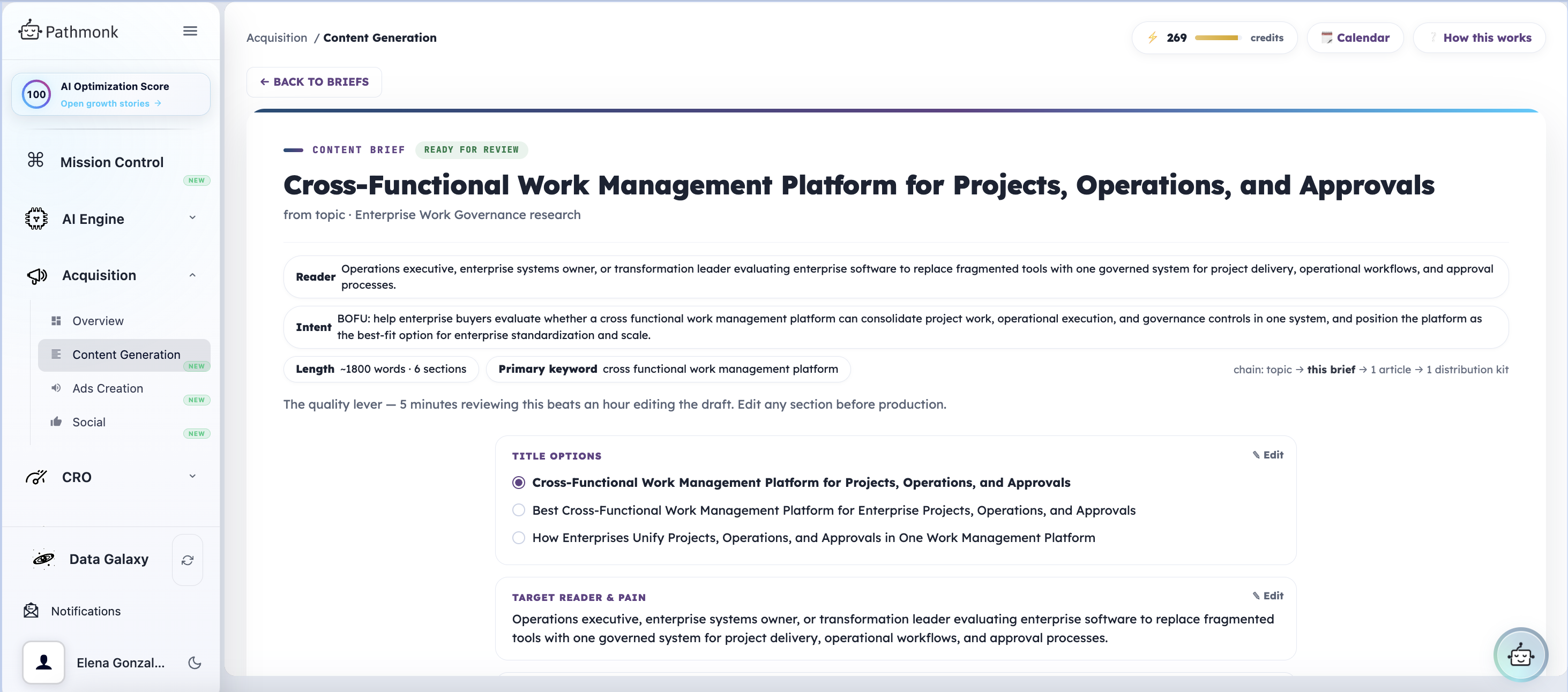
The brief carries, at the top, the reader, the intent, the target length and section count, and the primary keyword. Below that you get title options to choose between, the target reader and pain, the outline, the questions to answer so the article can be cited on AI search, the prompts you are targeting, your main CTA, and the internal links.
Review this properly. As the screen itself says, five minutes here beats an hour editing the draft. Every section has an Edit control: change what you want, save, and either regenerate the brief or push it into production.
Step 6: Article production
Creating the article opens a production line with seven steps.
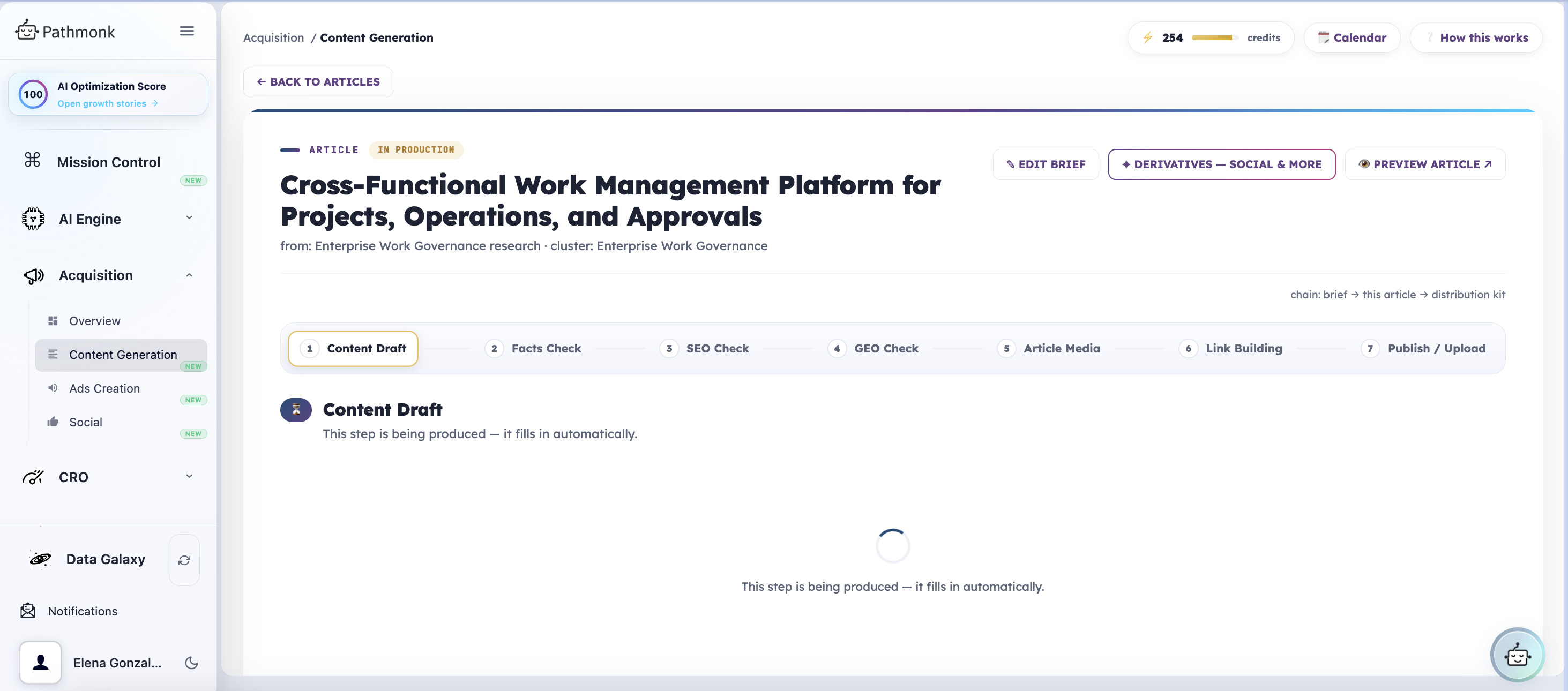
- Content draft
- Facts check
- SEO check
- GEO check
- Article media
- Link building
- Publish / upload
SEO check and GEO check are twin optimisation steps: rank on Google, get cited by AI answers.
The steps fill in automatically. You do not have to sit and watch. Go back to the hub, start something else, and come back. The progress bar on the article row shows which step it is on, and the hub summary shows how many articles are in production and how many are published. Edit brief stays available throughout if you want to change direction.
Two steps deserve a note:
- Article media. You get concepts first and generate only what you approve: a hero illustration, a section diagram, and a social card. Steer it with a direction like flat illustration, on-brand, no stock-photo look, then run the step. If you do not like the result, view it full size and re-run.
- Link building. Pathmonk finds link opportunities across your site using your real tracked pages. You approve the links, then continue.
Step 7: Publish, or schedule it
The final step is deliberately the optional one. As the screen puts it: push to your CMS as a draft or live, or export. The default is a CMS draft, and a human presses the real button.
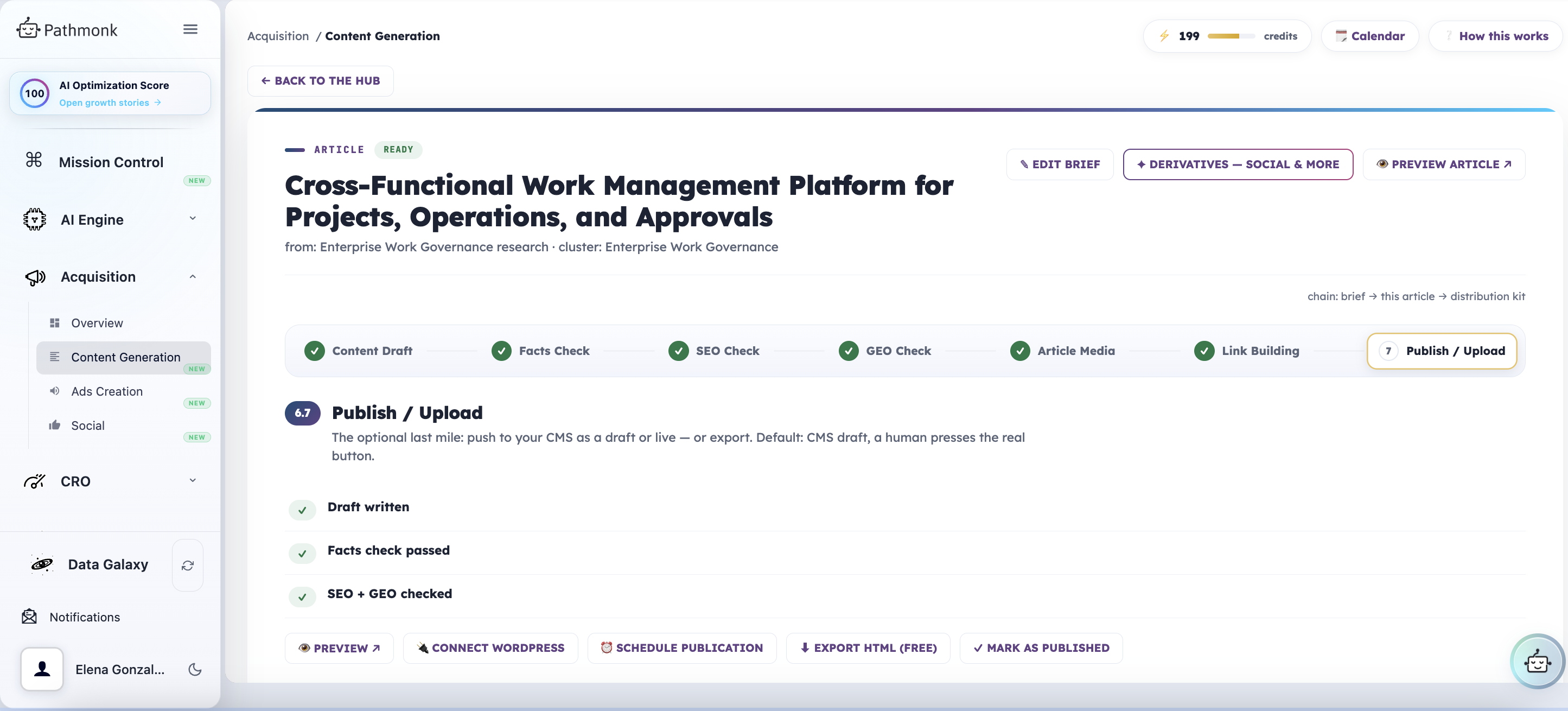
You have five ways out:
- Preview. See the finished article as it will read.
- Connect WordPress. Pathmonk pushes articles as drafts and you hit publish in WordPress yourself. You need your site URL, your WordPress username, and an application password, not your normal login password. Create one in WordPress under Users → Profile → Application Passwords and name it Pathmonk. This works on WordPress 5.6 and above with no plugin.
- Export HTML. Free, and repeatable as often as you like. You get the article body only, with no title inside it, because your CMS renders the title from its own field. Copy the title exactly as given: changing it breaks the SEO and GEO work that was done on that exact wording. Copy the HTML or download the .html file.
- Mark as published. For anything you published by hand. Once an article is live, the publish step shows the URL, and Update published URL lets you correct it later.
- Schedule publication. Covered next, because this is what fills your calendar.
Step 8: The editorial calendar
The calendar is where the whole thing becomes a programme rather than a pile of articles. Open it from the Calendar button in the top bar of any Content Factory screen.
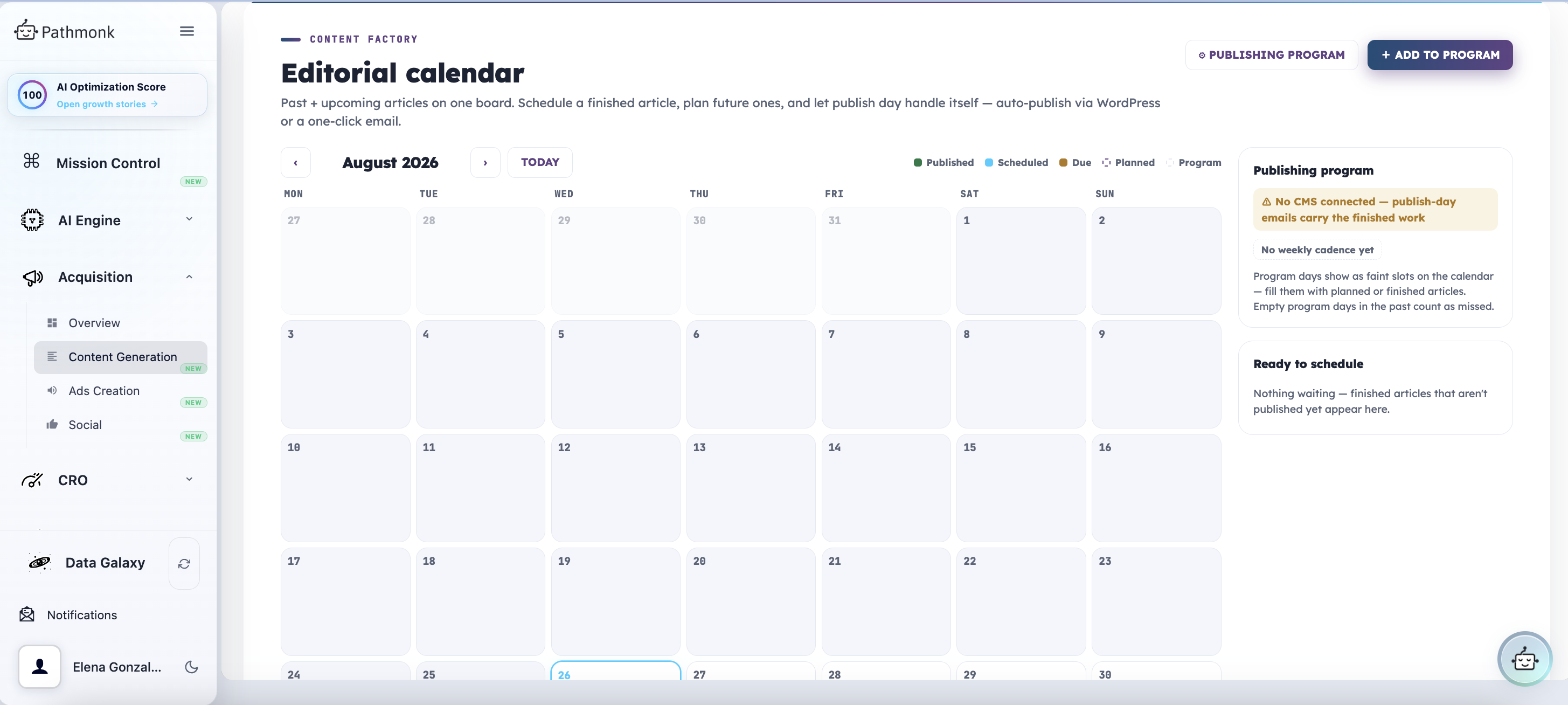
Past and upcoming articles sit on one board, colour-coded: published, scheduled, due, planned, and program days. Schedule finished articles, plan future ones, and let publish day handle itself.
The publishing program
Publishing program is the cadence layer: it sets the rhythm you intend to keep, for example one article a week. Program days appear as faint slots on the calendar, and you fill them with planned or finished articles. Empty program days in the past count as missed, which is the honest way to see whether the programme is actually running.
The right-hand panel keeps two things in view:
- Whether a CMS is connected. Without one, publish-day emails carry the finished work instead.
- Ready to schedule, which lists finished articles that are not published yet. Anything sitting here is work you have already paid for and not shipped.
+ Add to program puts an article onto a program slot.
After publishing: one article becomes many
A published article is a starting point, not an end point. Open derivatives shows everything it can become, one click each.
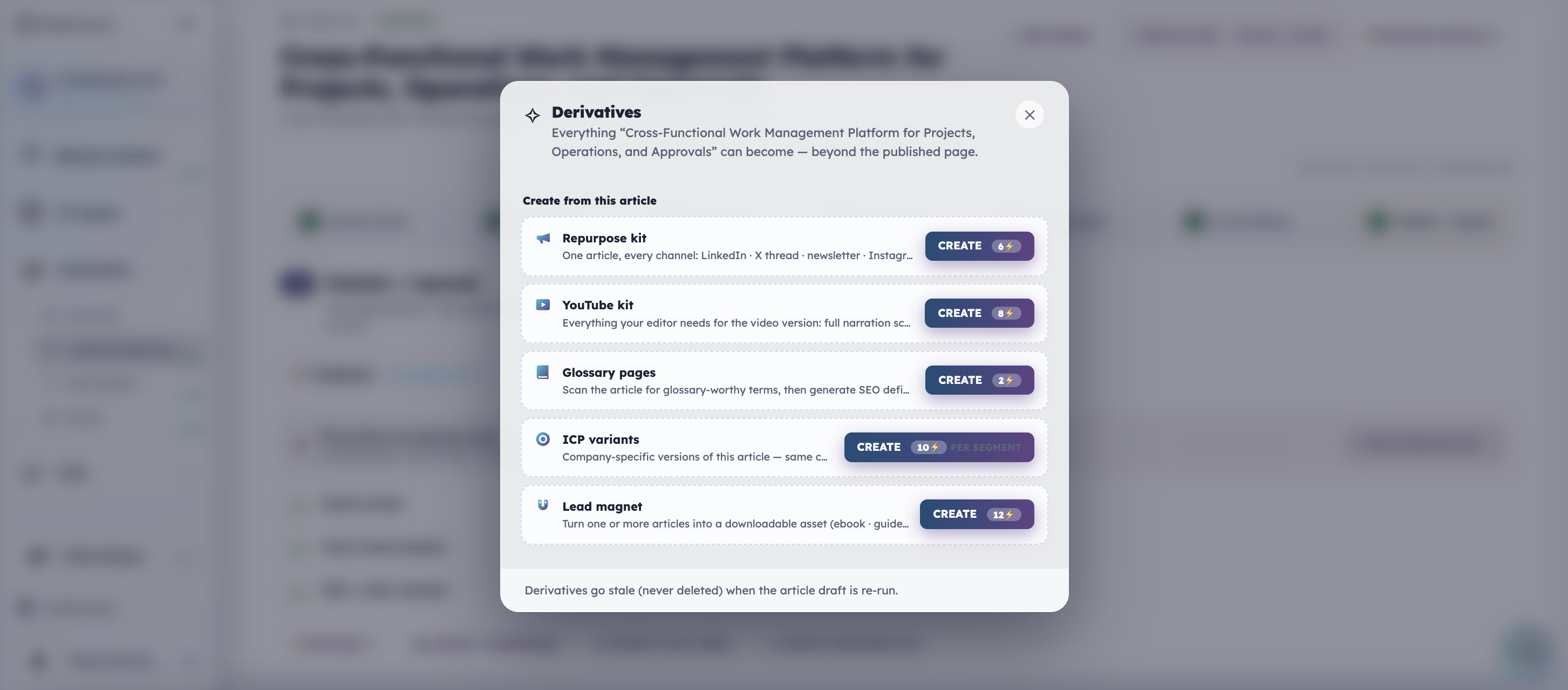
| Derivative | What you get |
|---|---|
| Repurpose kit | One article, every channel: LinkedIn, X thread, newsletter, Instagram and more |
| YouTube kit | Everything an editor needs for the video version, including the full narration script |
| Glossary pages | Scans the article for glossary-worthy terms and generates SEO definitions |
| ICP variants | Company-specific versions of the same article, priced per segment |
| Lead magnet | Turns one or more articles into a downloadable asset such as an ebook or guide |
Derivatives go stale, never deleted, when the article draft is re-run.
What feeds the factory
Under the pipeline, the hub shows the real data every article is grounded in. None of it is invented.
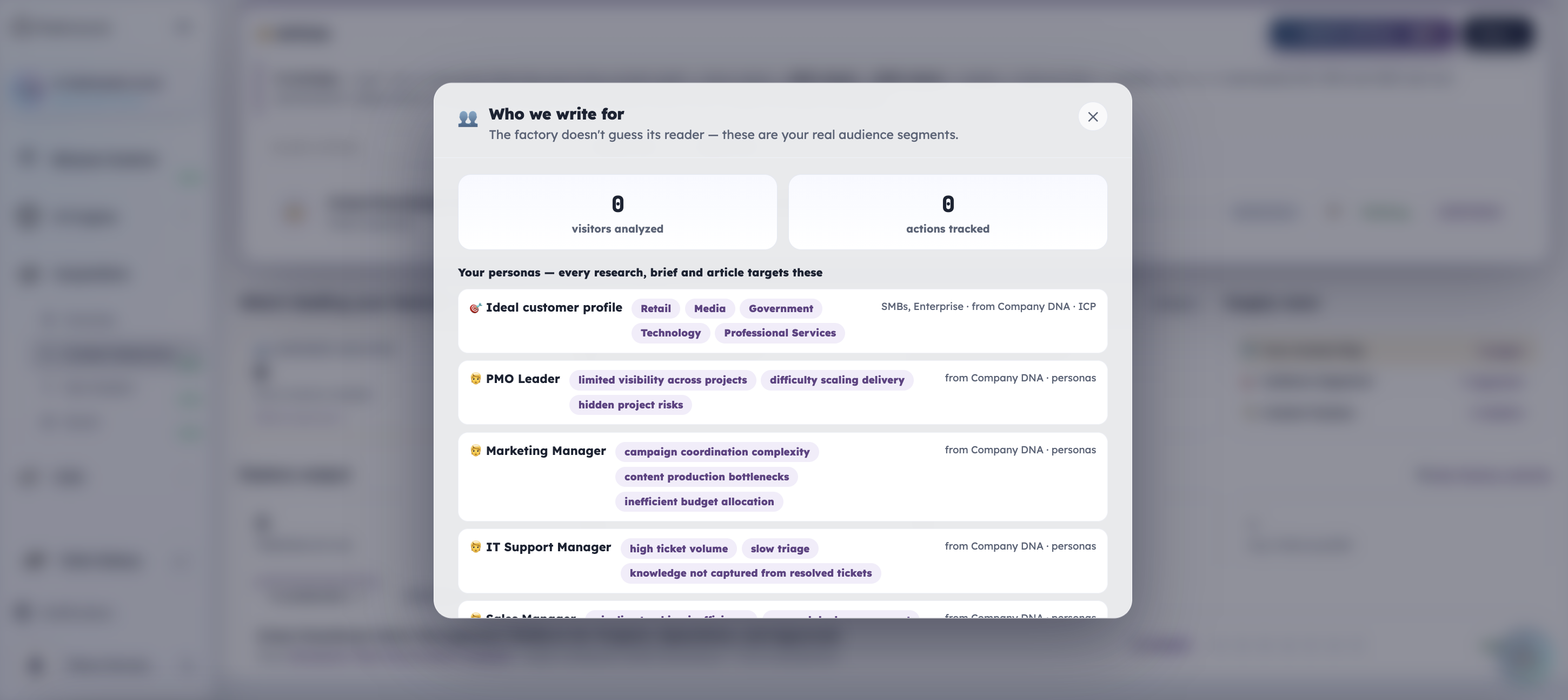
- Audience segments. The factory does not guess its reader. Open Who we write for to see your personas, all pulled from your Company DNA: the ideal customer profile plus role-based personas with their pain points. On a new account you will see zero visitors analyzed and zero actions tracked, which is expected. As traffic arrives, the segments get sharper. You can also add a segment manually.
- Competitors. Your direct rivals and adjacent players, identified from your Company DNA. This is a side feed: it never blocks anything, but every keyword research automatically folds the gaps in.
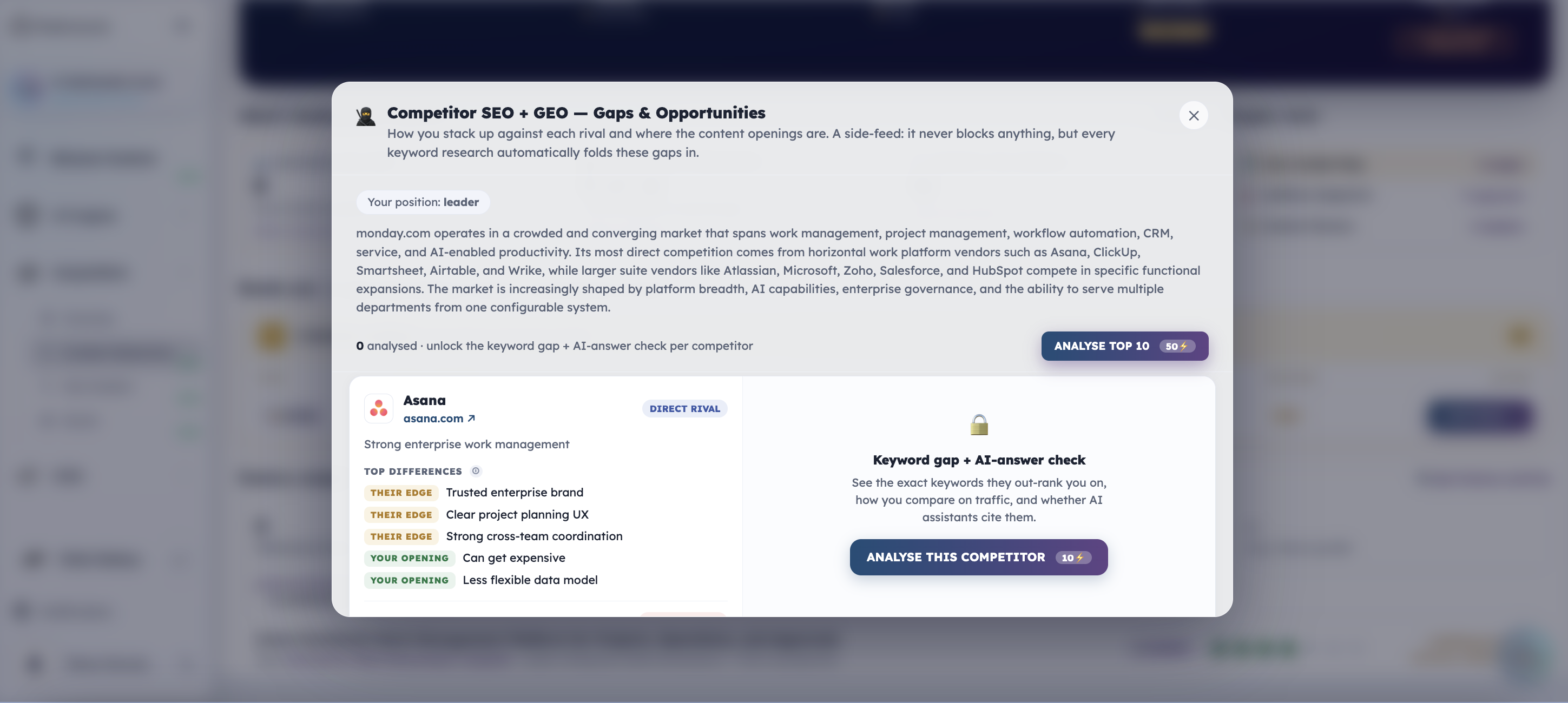
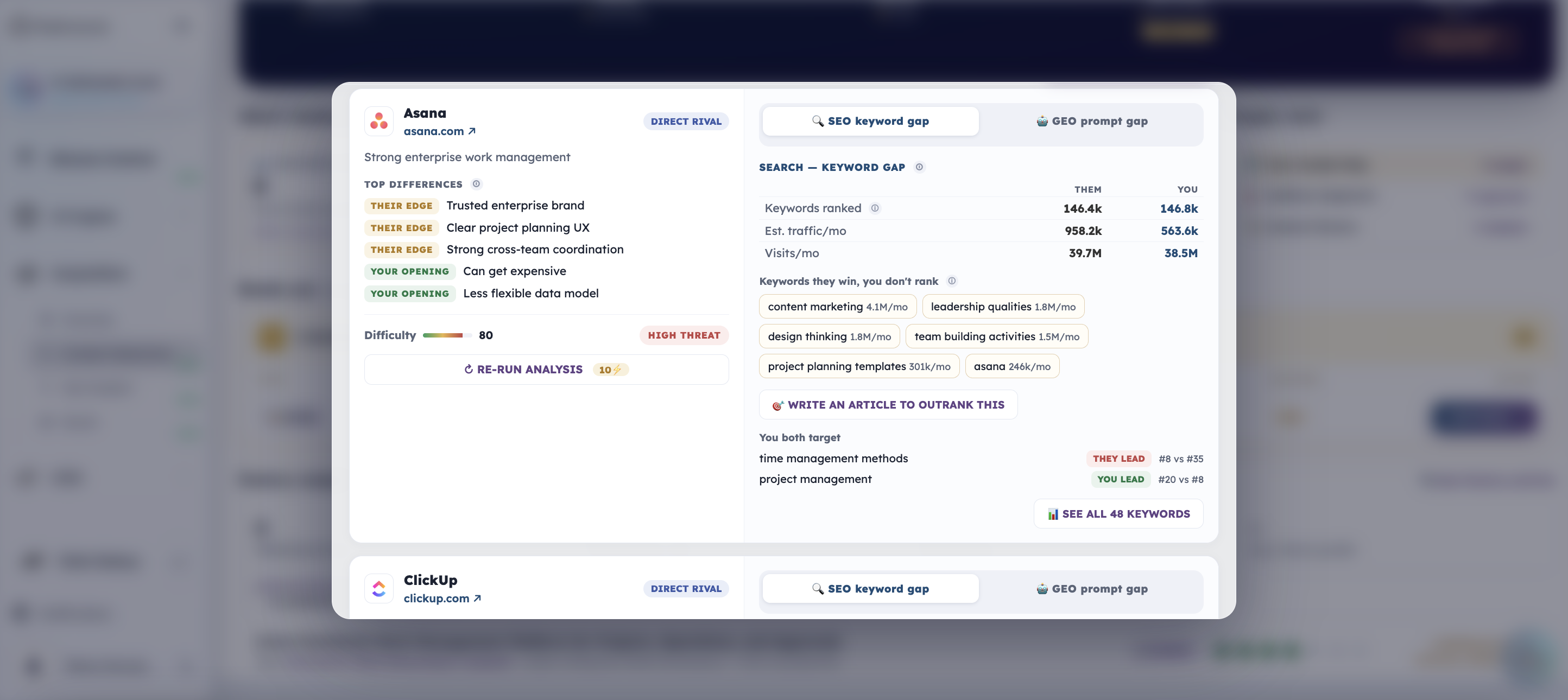
Analyse them one at a time, or analyse the top 10 at a discount. Once analysed, each competitor shows the SEO keyword gap and the GEO prompt gap: how many keywords each of you ranks for, estimated traffic, the keywords they win that you do not rank for, and the terms you both target with the position each of you holds. Write an article to outrank this turns any of it into production work immediately, and the full keyword comparison lists every organic keyword either site ranks for.
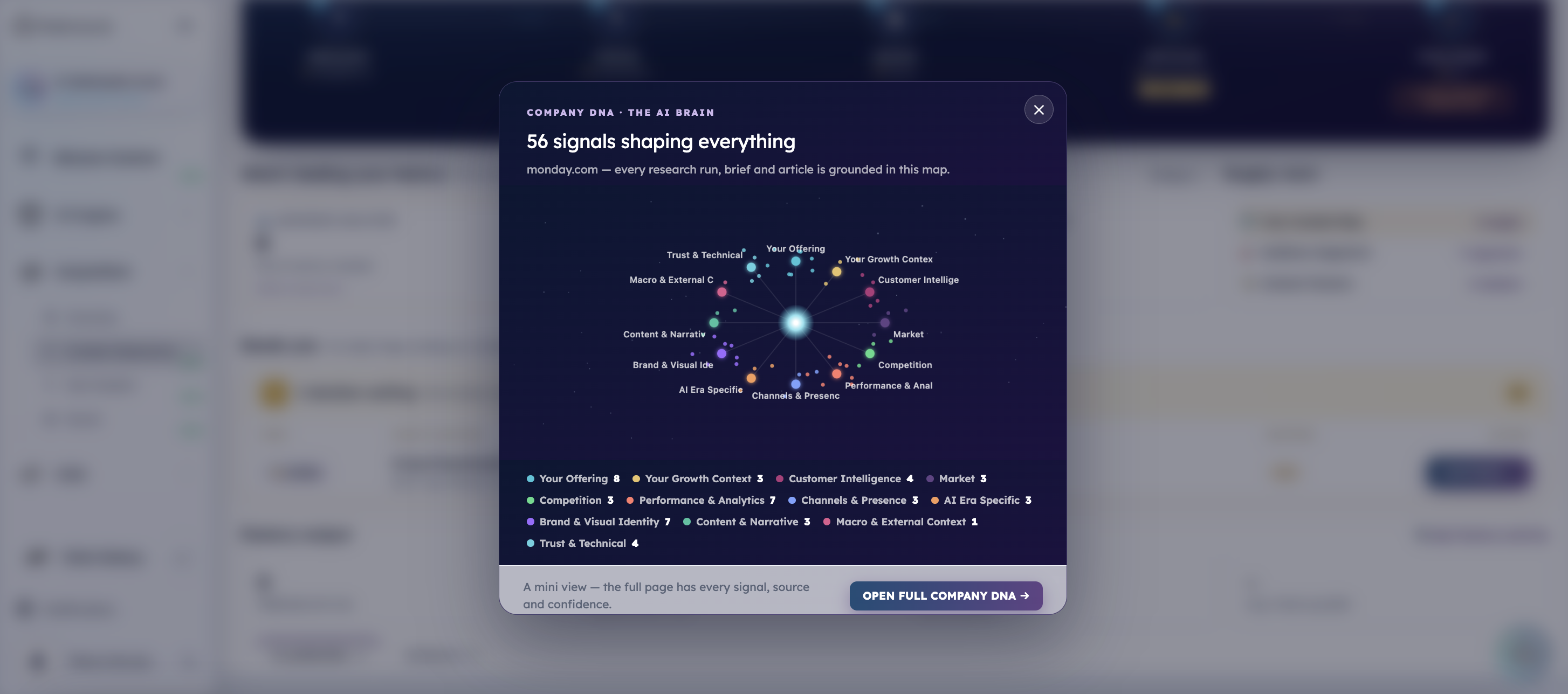
- Company DNA signals. Your company's structured information, the layer underneath everything. Every research run, brief and article is grounded in this map, and so is your content calendar. Open full Company DNA takes you to the AI Engine section.
Three ways to run the factory
Everything above is the manual path. There are two faster routes, and you can mix all three.
- Step by step. What this guide describes. You pick the keywords, review the brief, approve each step. Most control, most credits saved on things you would have changed anyway.
- Outrank a competitor. Start from a rival instead of from your own clusters. Pick who to outrank and Pathmonk writes for the keywords they rank for and you do not, drawn from the competitor analysis. From there you can either follow the normal steps or hand it to Autopilot.
- Autopilot article. One click, fully automated. The factory makes every decision, reads your data to pick the cluster, keywords and topic, builds the brief, writes the draft in your brand voice, fact-checks it, runs the SEO and GEO passes, generates the hero image and plans the internal links. It stops at publish-ready. The finished article lands in Needs you for your sign-off, and nothing goes live without it. Autopilot also reuses existing research for free where it can, which lowers the cost of the run.
While it works, the article row shows an Autopilot badge and no action needed, so you can leave it alone and keep exploring.

Steering any step: the three input modes
Every AI step in the factory has the same three modes, which is why you can jump in anywhere rather than starting at the beginning.
| Mode | What it does |
|---|---|
| Use previous | Consume the previous step's saved output as-is. The default flow. |
| Manual | Type or paste the input yourself. This is what lets you run any step standalone, with no upstream artifact. |
| Pick & steer | Select some upstream items and add a direction, for example enterprise buyers only, which shapes this step and the ones after it. |
Nothing breaks: staleness, not deletion
Re-running an upstream artifact marks everything built on it with an amber stale chip, across every article that used it.
Nothing is deleted and nothing re-runs by itself. You decide what to refresh. Manual inputs never go stale.
Credits
Every AI step draws from the same credit balance you use for image generation. Each button shows its cost before you run it, and your balance sits in the top bar of every Content Factory screen. Reviewing, selecting and editing are always free. Credits are only spent when the AI runs.
| Step | What you get | Cost |
|---|---|---|
| Keyword research · SEO | 30 to 50 scored keywords from Search Console, Company DNA and competitor gaps | 10 |
| Prompt research · GEO | AI-engine prompts, who is cited today, and citation opportunity | 8 |
| Topic ideation | 6 to 10 article candidates from your selected keywords and prompts | 3 |
| Content brief | Full editorial plan: outline, reader, questions, CTA and GEO structure | 5 |
| Article production | Draft plus facts check, SEO check and GEO check, in your brand voice | 15 |
| Article media | Per generated image (concepts are free to review) | 5 |
| Internal links | Link plan using your real tracked pages | 2 |
| Distribution kit | 8 channels: LinkedIn, X thread, newsletter, pull-quotes, Instagram carousel, short-video script, sales summary, customer email | 6 |
| Content map refresh | Re-crawl plus fresh Search Console rankings for every page | 8 |
| Segments re-detect | Personas rebuilt from Company DNA and channel mix | 6 |
| Competitor re-scan | Fresh gap analysis against your DNA competitors | 8 |
Scheduling and exporting are free.
Where the results land
- Published articles report their real organic clicks from Search Console.
- New pages join your Content Map, so the factory knows what you already have.
- Every article carries your tracked conversion goal, so content is measured against outcomes rather than traffic alone.
- Keywords, topics and articles all carry SEO and GEO potential with an expected-impact estimate, so you prioritize by outcome rather than by instinct.
The hub's Factory output row keeps the summary in one place: published articles, organic clicks over the last 30 days, topic backlog, and average time to publish.