
How to check, modify, and archive your tracked events.
Tracked events measure the key actions on your website — purchases, form submissions, bookings. Each conversion goal has at least one associated tracked event, and you can create more for any action worth measuring. This article covers how to check, modify, and archive them.
Checking your tracked events
Navigate to AI Engine → Event tracking, or go directly to crm.pathmonk.com/dashboard/goals?tab=list. The Goals Overview shows two lists:
- Pathmonk Goals — the objectives your microexperiences optimize toward.
- Tracked Events — the actual conversion measurements that fire when visitors complete actions.
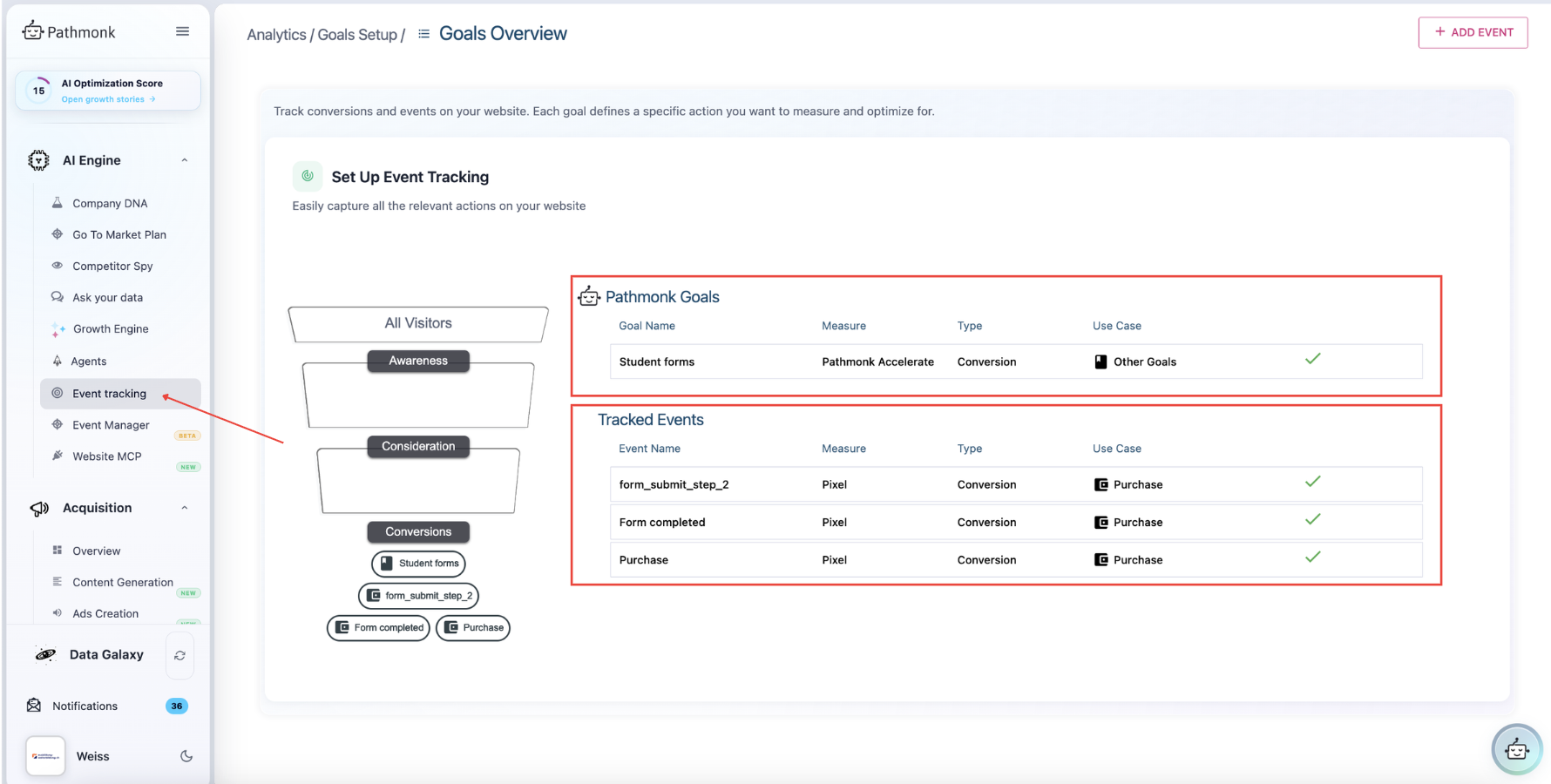
The page also visualizes where each goal and event sits along the buying journey funnel.
Modifying a tracked event
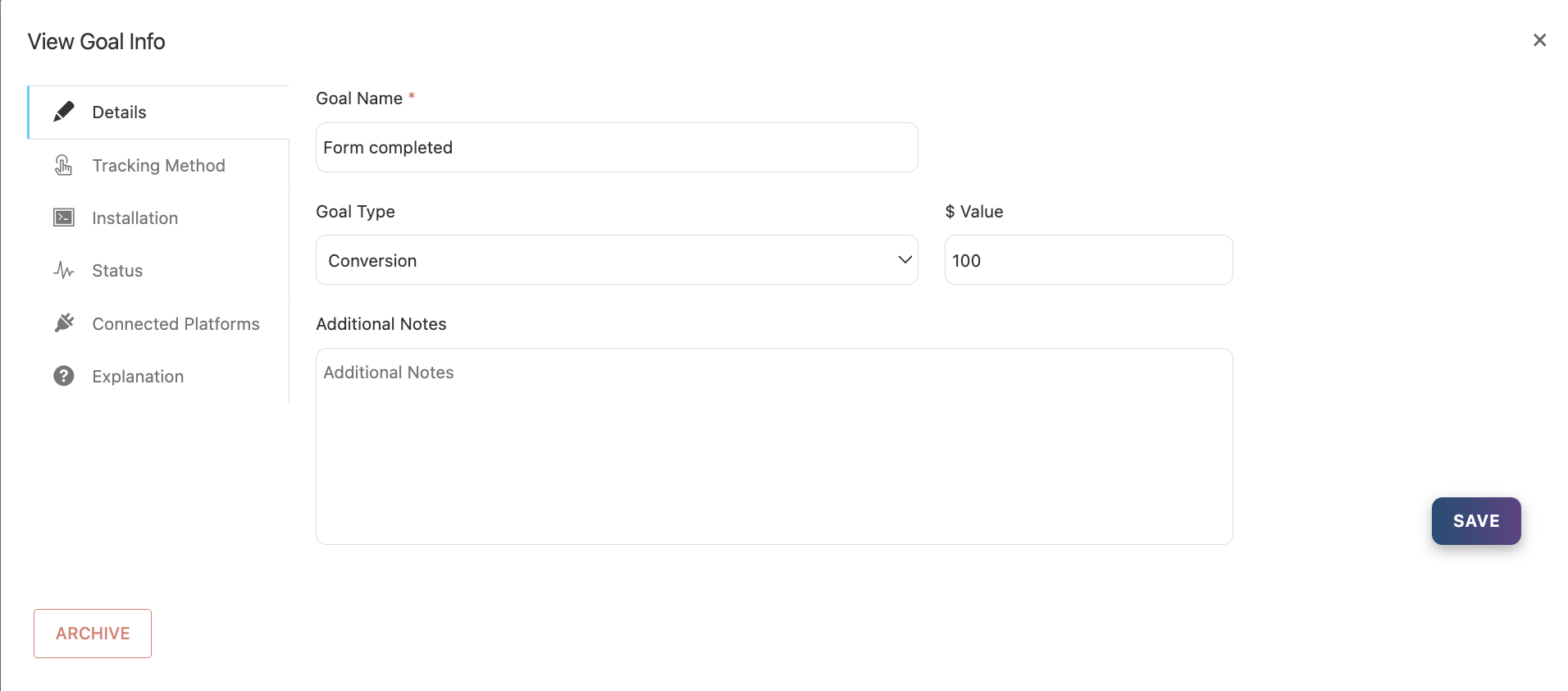
Click any event name to open its details card. You'll see these tabs:
- Details — edit the core information:
- Event name (your internal identifier)
- Goal type (its category, e.g. "Conversion")
- Monetary value (see Assigning a monetary value to your conversions)
- Notes for your team
2. Tracking Method — see and update how the event is tracked: the thank-you page URL it watches, or the pixel script it uses. Click Save after any change. The methods themselves are explained in How conversion tracking works in Pathmonk.
3. Installation — for pixels only
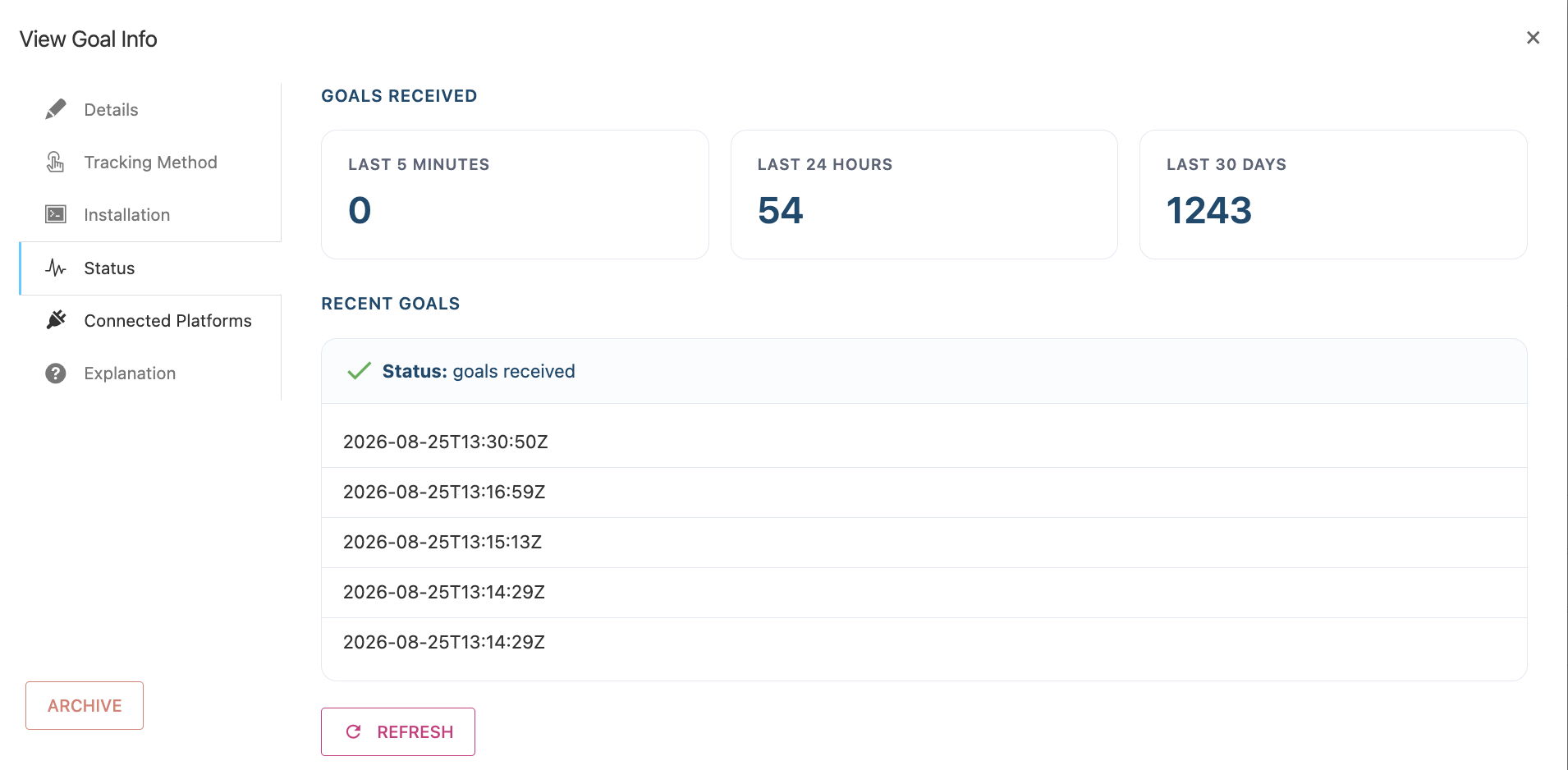
4. Status — real-time verification that the event is firing: completions over the last 5 minutes, 24 hours, and 30 days, with timestamps. This is the first place to look if you suspect conversions aren't being recorded.
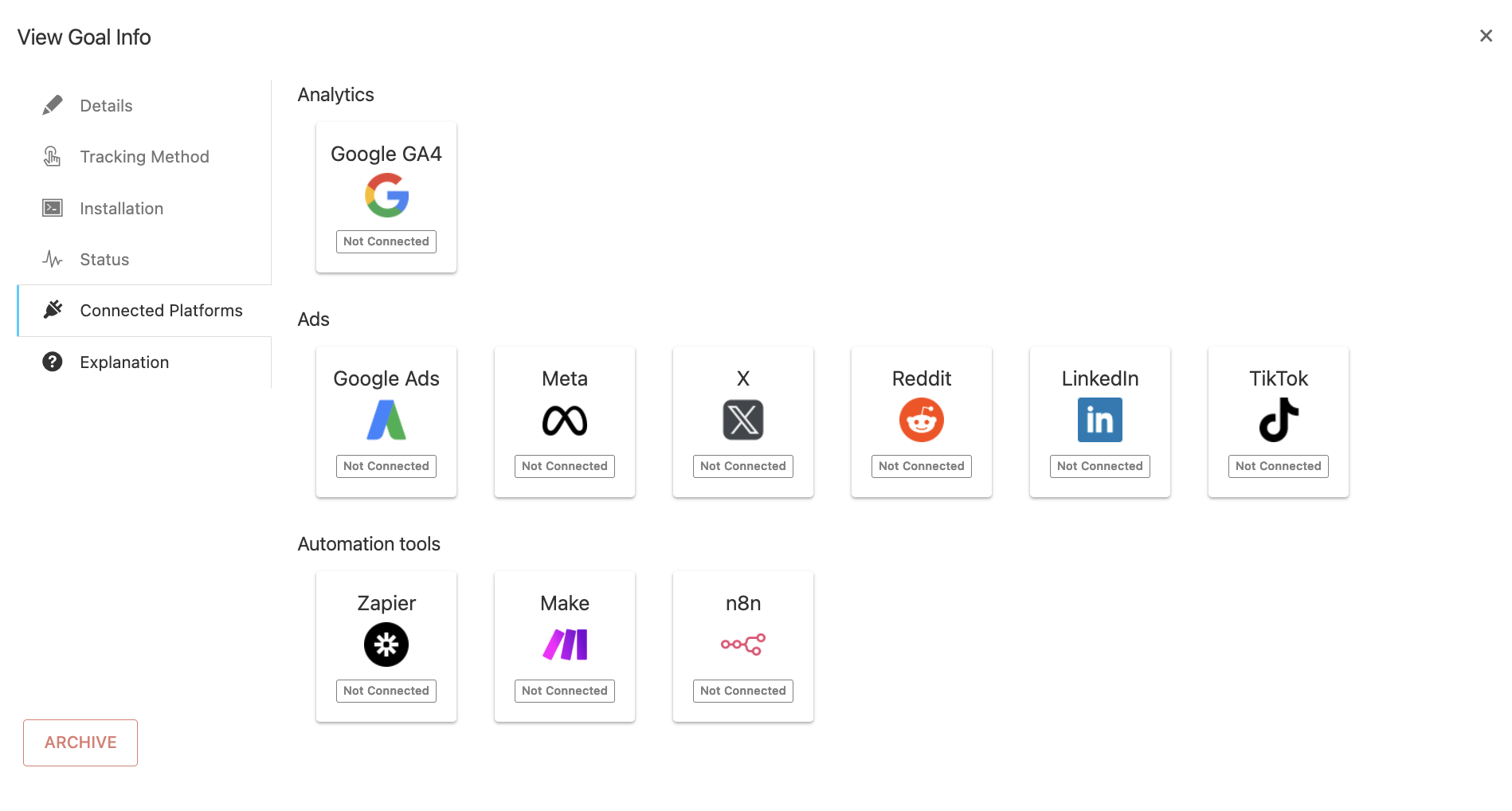
5. Connected Platforms — send this event to third-party tools: Google Analytics 4, ad platforms (Google Ads, Meta, X, Reddit, LinkedIn, TikTok), and automation tools (Zapier, Make, n8n). Useful for feeding conversion signal back to your campaigns without duplicate tracking setups.
Archiving a tracked event
Open the event and click Archive in the bottom-left corner.
Warning: archiving permanently removes the event from active tracking and cannot be undone. Before archiving an event, make sure no conversion goal still depends on it — a goal without a working tracked event stops being measured.