
Installing Pathmonk on your website
Pathmonk installs with a single JavaScript snippet. You add it once to your site, and the SDK loads on every page, starts reading anonymous behavioural signal, and switches your growth engine on. There is no cookie banner to update. Installing is the Install step of the Onboarding, and Pathmonk detects it automatically, you never have to come back and press anything.
Before you start
You'll need:
- A Pathmonk account, with onboarding started. Sign up at crm.pathmonk.com/signup.
- Access to your site, or to whoever has it. That means your CMS admin, your theme files, or your tag manager. If you don't have access, use Send to a developer on the Install screen — it forwards the snippet and instructions to a colleague.
- At least 10,000 pageviews per month. Below that, the engine doesn't get enough signal to learn from, or to reach statistical significance in testing. See Requirements and supported setups.
You do not need to change your cookie consent banner. Pathmonk is cookieless and first-party by design — see Pathmonk's cookieless technology and GDPR.
Step 1 — Open the Install step
Growth Onboarding walks you through five steps; Install is the fourth. The left panel asks how you want to install, the right panel is live-listening to your domain for its first pageview.
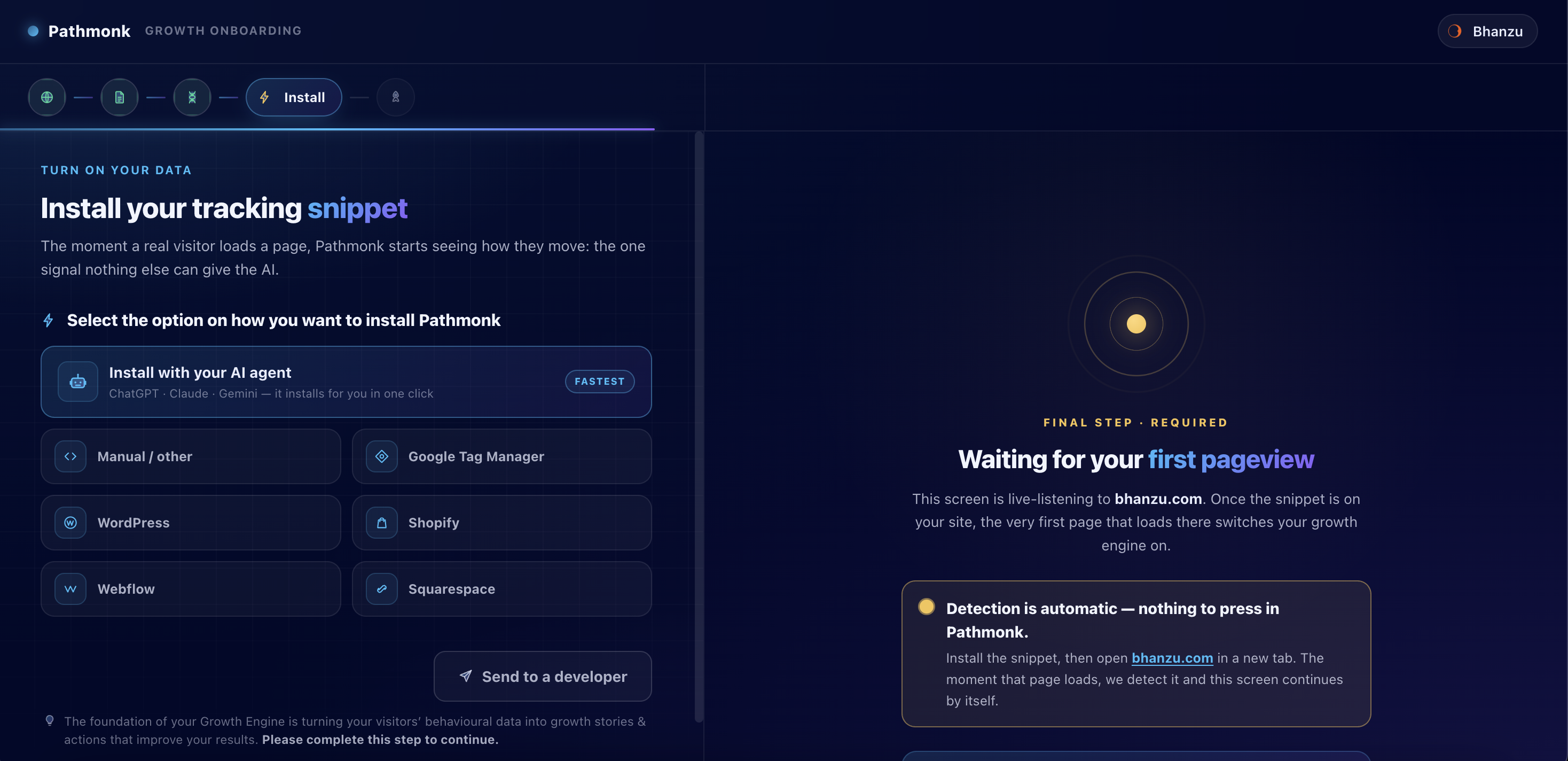
You have three routes:
| Route | Best for |
|---|---|
| Install with your AI agent (fastest) | You use ChatGPT, Claude or Gemini and it has access to your site or codebase. One click, it installs for you. |
| Pick your platform | WordPress, Shopify, Webflow, Squarespace, Google Tag Manager, or Manual / other. Step-by-step for each. |
| Send to a developer | Someone else owns the site. Sends them the snippet and instructions. |
Pick whichever fits. They all end in the same place: the snippet on your pages.
Step 2 — Install with your AI agent (fastest)
If you already work with an AI agent that can reach your website or its codebase, this is the shortest path.
- Click Install with your AI agent.
- Follow the handoff to ChatGPT, Claude or Gemini.
- The agent places the snippet for you.
It's the right choice when your site lives in a repo you can point an agent at, or when your agent has browser access to your CMS. If your agent can't reach the site, use a platform tile instead — it takes a few minutes longer.
Step 3 — Or install the snippet yourself
Every manual route places the same snippet. Copy it from the Manual / other tile — it already contains your unique client_id.
html
<!-- Loading Pathmonk web SDK for JavaScript -->
<script async type="text/javascript">
(function (d, key) {
  var js, si = "pathmonk-js-sdk";
  var dv, vi = "pathmonk-root";
  if (d.getElementById(si)) return;
  if (d.getElementById(vi)) return;
  dv = d.createElement("div");
  dv.id = vi;
  dv.style.cssText = "display:none";
  dv.setAttribute("setup", "page_plugin");
  dv.setAttribute("client_id", key);
  d.body.appendChild(dv);
  js = d.createElement("script");
  js.id = si;
  js.src = "https://pathmonk-lib.pathmonk.com/plugin/plugin.min.js";
  d.body.appendChild(js);
})(document, "YOUR_CLIENT_ID");
</script>
Always copy the snippet from your dashboard, not from this page. YOUR_CLIENT_ID is a placeholder; the string in your account is what ties the SDK to your site, and a snippet without it reports nothing.
Where it goes
Immediately before the closing </body> tag, on every page. Two rules cover almost every install problem we see:
- Every page, not just the homepage. The engine reads the whole journey. A snippet on one page produces a partial, misleading picture of intent.
- Before
</body>, not in<head>. The snippet appends its mount point todocument.body, so the body has to exist when it runs.
If your site has separate templates — blog, checkout, landing pages, gated app pages — make sure the snippet is in each of them.
What the snippet does
| Part | Purpose |
|---|---|
The pathmonk-root div | A hidden mount point. Microexperiences render into it, so nothing is injected into your own markup. |
The two if (...) return guards | Prevent a double install (snippet in the theme and in GTM) from loading the SDK twice. |
client_id | Identifies your account. Unique to you. |
plugin.min.js | The SDK, served from Pathmonk's CDN. It's injected dynamically, which makes it non-blocking by default — your page paints first, Pathmonk loads after. |
Step 4 — Verify
You don't have to do anything in Pathmonk. Detection is automatic. Once the snippet is live, open your site in a new tab. The first page that loads switches your growth engine on, and the onboarding screen continues by itself.
If the screen is still waiting after a few minutes, work through these in order:
- Did the change publish? Open your live site, view source (
Ctrl/Cmd + U), search forpathmonk. If it's not there, your change didn't go live — usually a caching layer. (This check doesn't apply to Google Tag Manager or Wix, which inject the snippet client-side. Use check 2 instead.) - Is the script loading? DevTools (
F12) → Network → reload → filter forpathmonk.plugin.min.jsshould return 200. - Is something blocking it? Ad blockers, a Content Security Policy, or a consent tool that defers unclassified scripts. See the CSP section below and Is Pathmonk not connecting to your website?.
Platform instructions
WordPress
Two options.
Option A — a code-snippet plugin (recommended). Install WPCode (formerly Insert Headers and Footers), or use your theme's own Custom Code setting. Paste the snippet into the Footer / before </body> field and save. This survives theme updates; editing template files doesn't.
Option B — the theme file. Tools → Theme File Editor (Appearance → Theme File Editor on older WordPress), open footer.php, paste before </body>. Use a child theme so an update doesn't wipe it. Note that block themes have no footer.php — if you're on a block/FSE theme, or your host has disabled file editing, use Option A.
Then clear your cache. WP Rocket, LiteSpeed, W3 Total Cache, WP Super Cache and host-level caching (Kinsta, WP Engine, SiteGround) will keep serving the old HTML. Also check your JavaScript optimisation settings: "defer all JS", "delay JS until interaction", and JS minification or combination can break or postpone the SDK. Exclude pathmonk from those rules.
Shopify
- Online Store → Themes → … → Edit code.
- Open
layout/theme.liquid. - Paste the snippet immediately before
</body>and Save.
Two notes:
theme.liquidcovers your storefront. Shopify's checkout is a separate, locked surface for every plan — Pathmonk works across the journey up to checkout, and purchase revenue is attributed separately. See Tracking revenue from Shopify.- If you switch themes, re-add the snippet to the new one.
- Some speed-optimisation apps defer third-party scripts. Exclude Pathmonk from them.
Webflow
Site settings → Custom code → Footer code, paste, Save changes, then Publish. Site-wide footer code only — per-page code won't cover the journey.
Squarespace
Website → Website Tools → Code Injection → Footer, paste, save.
Code Injection requires a Core plan or above (Business or above on legacy plans). On lower plans, custom code isn't available.
Google Tag Manager
GTM is the cleanest and most flexible way to install Pathmonk. All your website scripts stay in one place, and you can update them later without touching your site.
- Copy the Pathmonk snippet from your setup screen or your setup email.
- Log in to Google Tag Manager and click Add a new tag.
- Rename the tag to Pathmonk.
- Under Tag Configuration, select Custom HTML.
- Paste the snippet into the HTML field.
- Under Triggering, choose All Pages. This loads Pathmonk across your entire website.
- Optionally, add an Exception to exclude specific pages or subdomains.
- Click Save.
- Back in the GTM dashboard, click Submit (top right), then Publish.
That's it — Pathmonk now loads on your site. There may be a short delay before your dashboard shows the connection as complete.
The usual GTM pitfalls:
- The container isn't on every page. Pathmonk inherits GTM's coverage. Confirm the container fires site-wide.
- Consent Mode or a CMP is blocking it. If your consent tool blocks unclassified scripts by default, the tag never fires. Pathmonk is cookieless and first-party, so classify it accordingly in your CMP.
- Double installs. If the snippet is already in your theme, don't also add it in GTM. Pick one method.
- Submit and Publish. Saving the tag isn't enough. A tag that works in GTM Preview but not on the live site is almost always an unpublished container — verify on the live site.
Other builders (Manual / other)
All of these have a global custom-code area. Use the footer / end-of-body field, never the head field, and publish afterwards.
| Builder | Where to paste |
|---|---|
| Wix | Settings → Custom Code → Add Code → Body – end, All pages, load once. Wix asks you to categorise custom code — leave it Essential so it loads without waiting on consent. |
| Duda | More → Settings → Head HTML → Body End HTML field. |
| HubSpot CMS | Settings → Content → Pages → select your domain → Site Footer HTML. |
| Framer | Project Settings → Custom Code tab → Add Script → placement End of <body>. |
Single-page apps (React, Vue, Angular, Next.js, Nuxt)
Add the snippet once to the app's HTML shell — index.html, app/layout.tsx (Next.js App Router), _document.tsx (Pages Router), or app.html — before </body>. Don't mount it inside a component that re-renders.
The SDK handles client-side route changes on its own, so you don't need to call anything on navigation. If your app is behind a login and you only want Pathmonk on the public marketing surface, keep the snippet out of the app shell, or use the rules in Showing or hiding for logged-in visitors.
See also Install on single-page apps and the SDK installation reference.
If you use a Content Security Policy
The snippet is an inline script that loads a remote file and calls a Pathmonk API. A strict CSP blocks all of that silently. Allowlist:
script-src   https://pathmonk-lib.pathmonk.com   + a nonce or hash for the inline snippet
connect-src  https://apisdk.pathmonk.com
img-src      https://pathmonk-assets.pathmonk.com
media-src    https://pathmonk-assets.pathmonk.com
font-src     https://fonts.gstatic.com
style-src    https://fonts.googleapis.com        + 'unsafe-inline' for injected styles
If you can't use a nonce or hash, 'unsafe-inline' on script-src is the fallback. Test with Content-Security-Policy-Report-Only first. Full detail: Content Security Policy (CSP) configuration.
Does this slow my site down?
No. The SDK is injected dynamically after the body has parsed, so it never blocks rendering, and microexperiences render into a dedicated hidden container rather than reflowing your layout. See Does Pathmonk slow down my site? for payload size and Core Web Vitals detail.
The common cause of a perceived slowdown is a performance plugin that defers or delays all third-party JavaScript, pushing Pathmonk's load far later than it should be. Exclude pathmonk from those rules.
Common install problems
| Symptom | Most likely cause |
|---|---|
| Onboarding still says "waiting for your first pageview" | Snippet not published, or page cache still serving old HTML |
| Snippet in source, no network request | CSP blocking, ad blocker, or a "delay JS" performance setting |
| Works on homepage only | Snippet added to a single template, not the global one |
| Works logged out, not logged in | App pages use a different layout, or visibility rules exclude them |
| Stopped working after a redesign | New theme doesn't carry the snippet |
| Snippet present but nothing shows on page | Normal during calibration — check the results timeline first |
Full triage: Is Pathmonk not connecting to your website? and Pathmonk isn't showing on my website.
What happens next
The moment your first pageview lands, onboarding continues and the engine starts working:
- The SDK collects anonymous, cookieless behavioural signal.
- Company DNA builds a picture of your brand, offering and audience — review it and correct anything wrong. See Reviewing and editing your Company DNA.
- Define what a win looks like: Setting up a conversion goal.
- The engine calibrates, then begins serving microexperiences against a permanent control group. See How Pathmonk A/B testing works.
Still stuck? Email support@pathmonk.com with your site URL and a screenshot of the Network tab filtered for pathmonk.